Click Step to see Step Summary
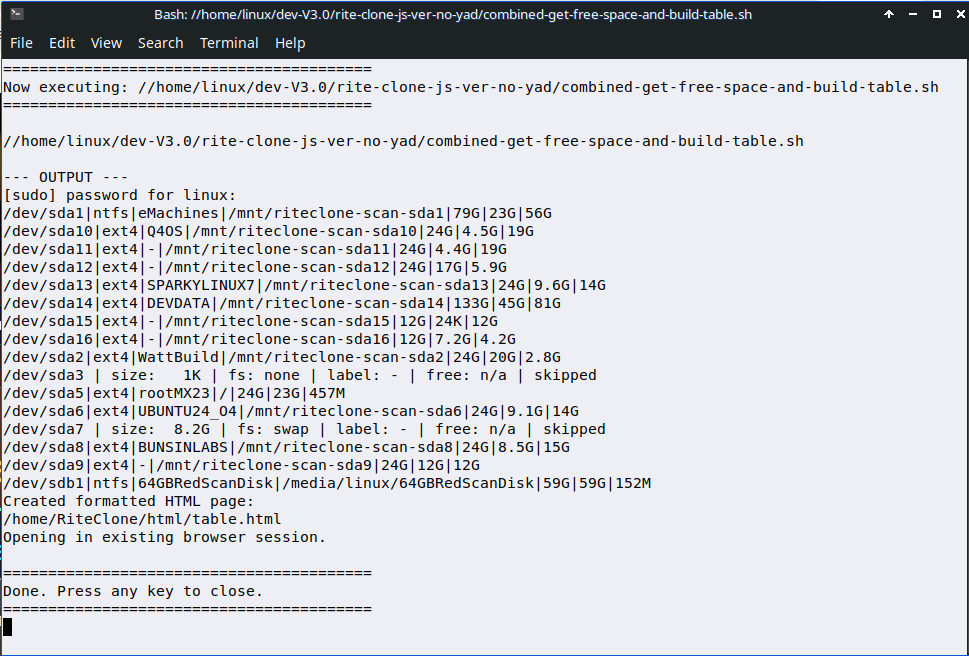
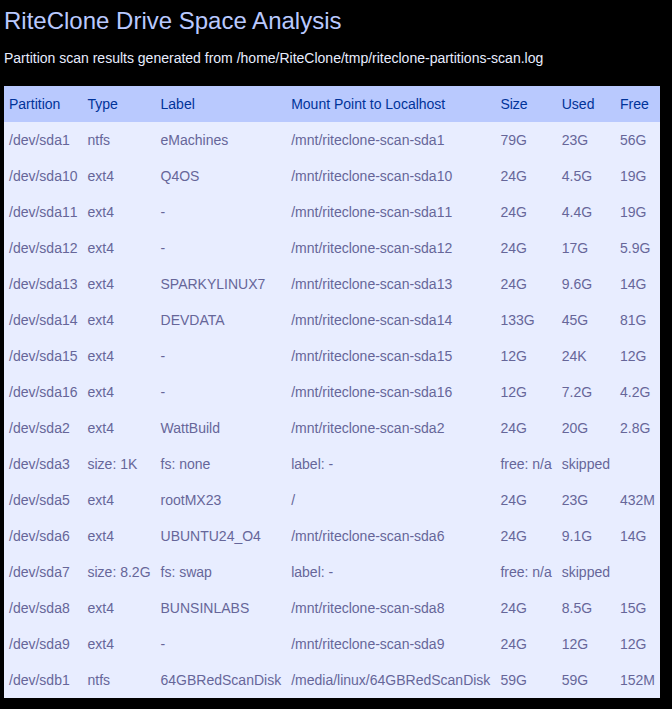
- Displaying partition information - Partition ID Number -
- Type / Size: Total | Used | Free
Freespace - Discovery and Display
Freespace Step: You will need to select a partition for Source and a partition for Build.
- Source partition - your custom build you want to remaster using the RiteClone Remaster System.
- Build Partition - where the contents of your Source partition will be copied
- Filesystem target path - Normallly this is: /home/RiteClone/iso/live/filesystem.squashfs but, you can change this path if you want the FileSystem from the mksquashfs command to be saved to a different location.
- Select Source Partition
- Select Build Partition
- Accept / Change FileSys Location
Step 2: Partition Selection
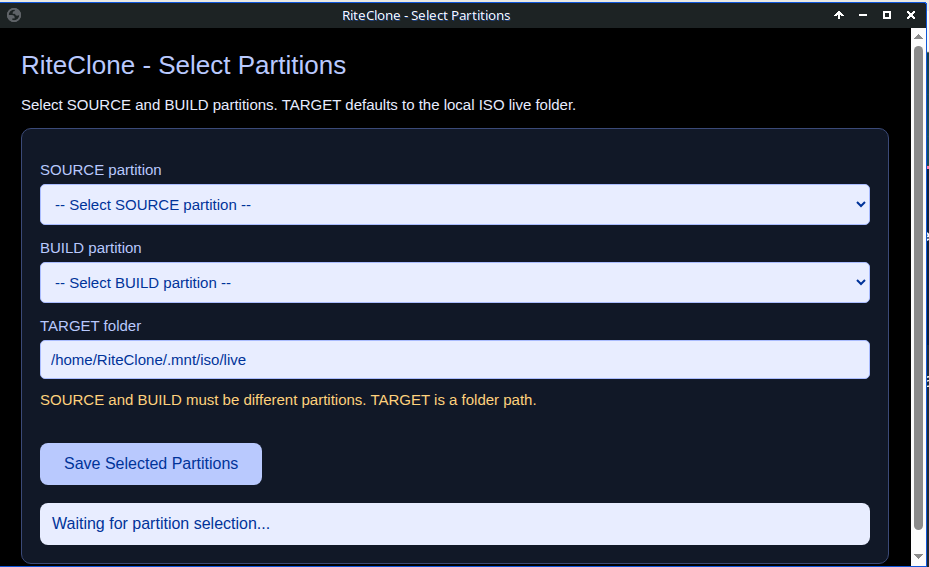
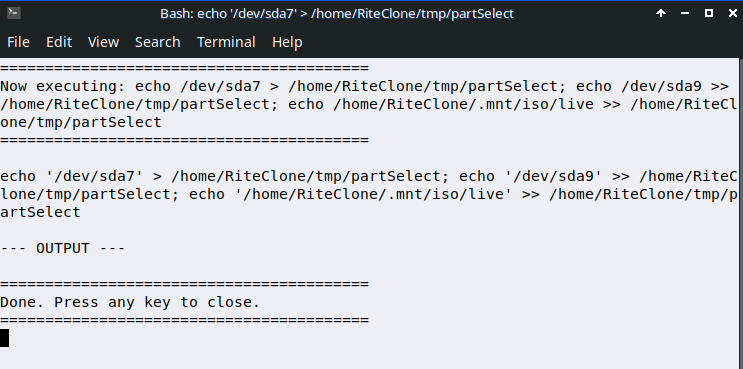
Step 1: Select Partition. You will need to select a partition for Source and a partition for Build.
- Source partition - your custom build you want to remaster using the RiteClone Remaster System.
- Build Partition - where the contents of your Source partition will be copied
- Filesystem target path - Normallly this is: /home/RiteClone/iso/live/filesystem.squashfs but, you can change this path if you want the FileSystem from the mksquashfs command to be saved to a different location.

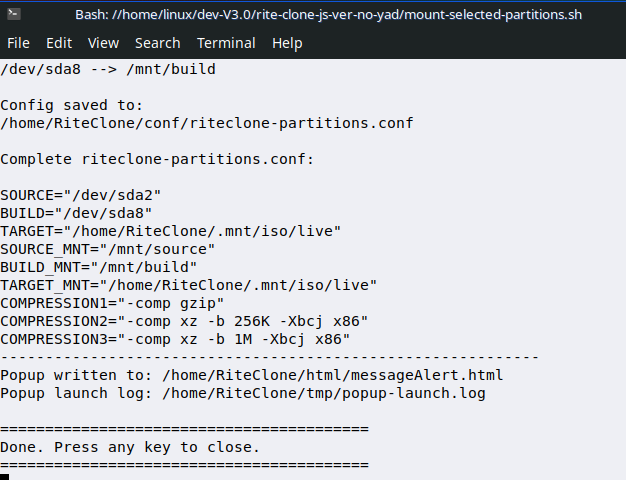
- $SOURCE /mnt/source
- $BUILD /mnt/build
Mount Partitions
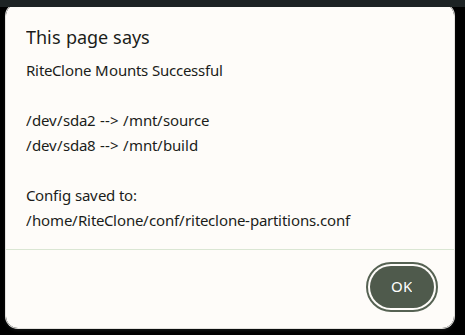
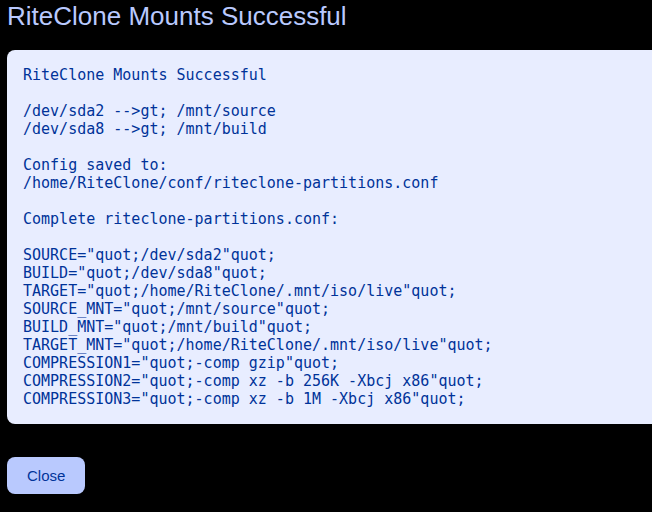
Step 3: Mount Partition.
- $SOURCE /mnt/source
- $BUILD /mnt/build